Setting up the Android app
The first time you sign in to TrackTime Full, and again after each update, the app shows Setup Permissions. It lists ten permissions with a Grant Permission button on each. The counter at the bottom reads X of 10 permissions granted, and the button becomes All Set - Start Tracking once everything is on.
You can come back to this screen at any time from the gear menu on the app dashboard, under Permissions.
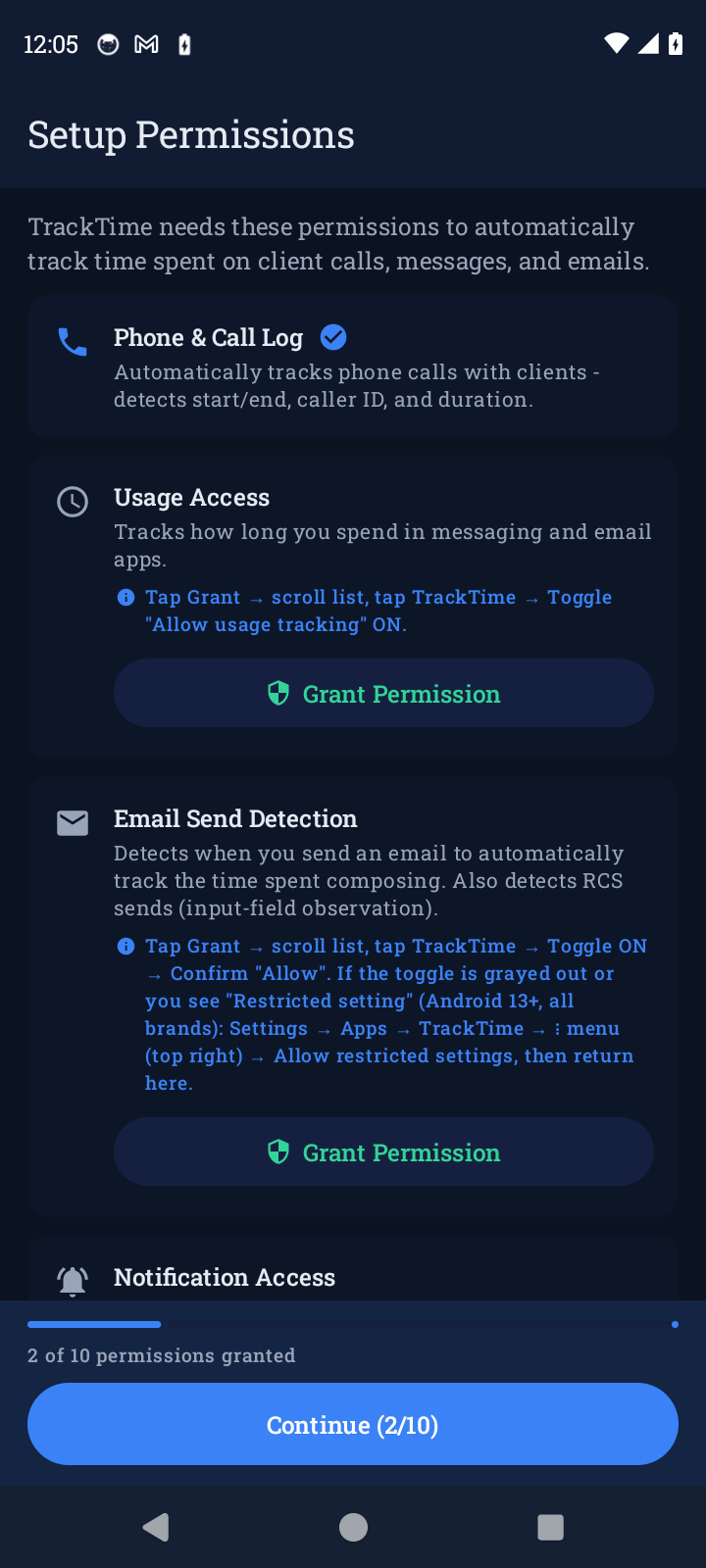
Two of the permissions, Email Send Detection and Notification Access, are blocked by Android 13 and newer for any app installed outside Google Play. The toggle appears greyed out or Android shows a Restricted setting message. The fix is in the section below. This applies to every phone brand.
The ten permissions
1. Phone & Call Log
Lets the app see when a call starts and ends, who it was with, and how long it lasted. This is what turns a phone call into an entry. Tap Grant, then Allow in the popup.
2. Usage Access
Measures how long you spend in messaging and email apps so the entry reflects the time you actually put in. Tap Grant. Android opens a list of apps; scroll to TrackTime, tap it, and turn on Allow usage tracking.
3. Email Send Detection
This is Android's accessibility service. TrackTime uses it to notice when you send an email or an RCS message so the time you spent composing can be logged. It does not read your messages. Tap Grant, find TrackTime in the list, turn it on, and confirm with Allow. If the switch is greyed out, see Restricted settings below.
4. Notification Access
Lets the app see incoming message notifications from Google Messages, WhatsApp, Signal, and Telegram, and the sent confirmations from Gmail and Outlook. Tap Grant, find TrackTime in the list, and turn it on. Same restricted-setting rule as above.
5. Notifications
Allows TrackTime to show its own notifications: the persistent Monitoring calls and messages notice and the popups after an event. Tap Grant, then Allow.
6. Display Over Other Apps
Allows the popup that appears after a call or message, where you add notes and confirm the entry. Tap Grant, find TrackTime in the list, and turn on Allow display over other apps.
7. Battery Optimization
Stops Android from shutting TrackTime down in the background. Without it, monitoring silently stops a few hours after you lock the phone. Tap Grant and choose Allow.
8. SMS
Lets the app see that a text was sent or received with a client, so it can log it. Message content is never stored. Tap Grant, then Allow on both prompts.
9. Location (Travel)
Used only by the Drive to Client feature to measure distance and time. Choose While using the app. TrackTime never asks for background location, and the trip screen keeps GPS running while your screen is locked during a drive.
10. Contacts
Lets you import phone contacts as clients so calls and messages match automatically. Tap Grant, then Allow.
Restricted settings on Android 13 and newer
Android blocks the accessibility and notification-access toggles for apps that were not installed from Google Play, until you override it once per app. The override is hidden in a menu that is easy to miss.
- Open the phone's Settings, then Apps, and find TrackTime.
- Tap the ⋮ menu in the top-right corner of the app's page.
- Choose Allow restricted settings and confirm.
- Go back to TrackTime's Setup Permissions screen and tap Grant on Email Send Detection and Notification Access again. The toggles now work.
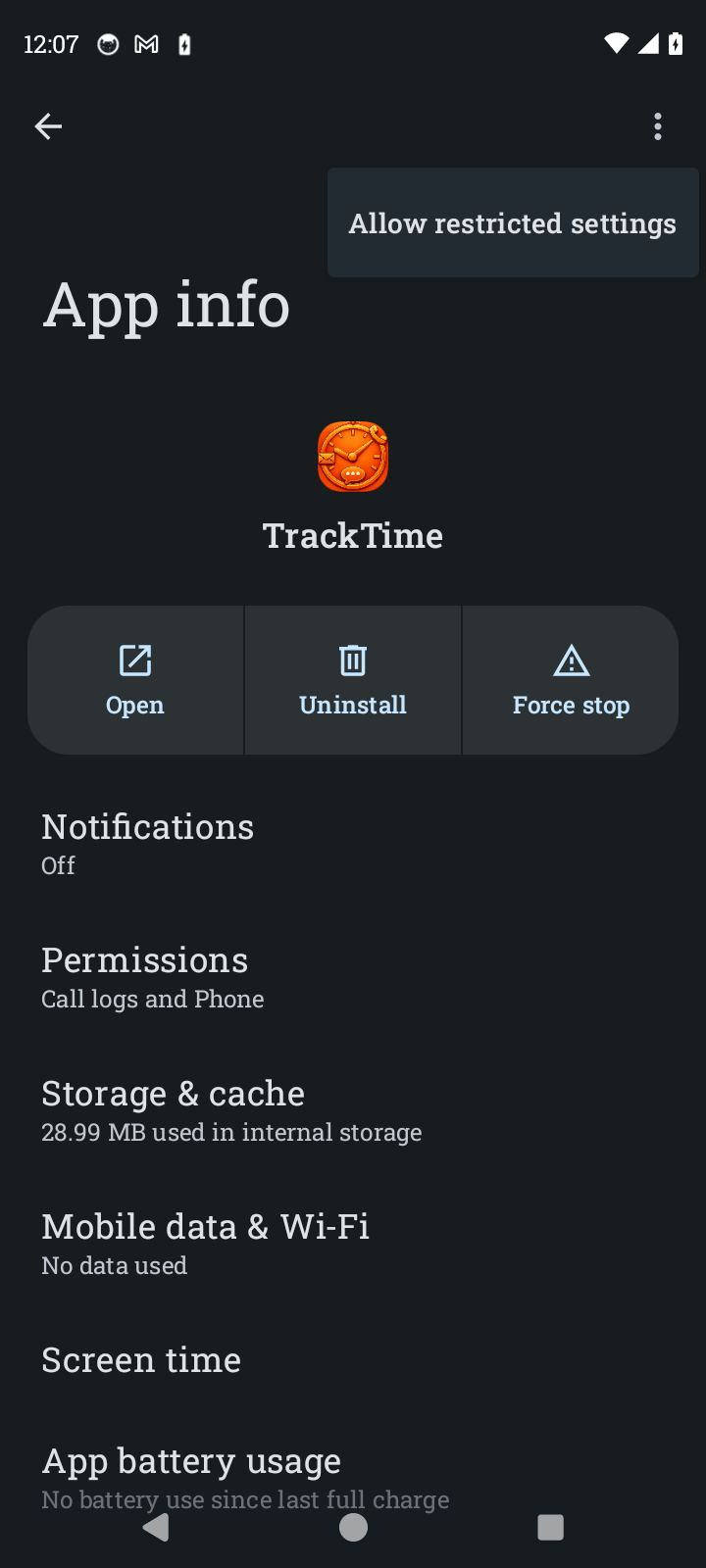
On some Motorola phones the ⋮ menu is missing the first time the app page opens. Close Settings fully and open it again, and the menu appears.
If the Allow restricted settings entry itself is greyed out, Android has not yet seen you try the blocked toggle. Go into TrackTime, tap Grant on Notification Access, let it fail, then return to the menu.
After setup
The app dashboard shows a card reading Monitoring Active with Tracking calls, messages, and emails. A persistent notification titled TrackTime stays in the shade while monitoring runs. That notification is normal and is what keeps Android from stopping the service. If the card ever reads Service not running, tap Restart monitoring service.
Samsung and other brands
Some manufacturers add their own battery managers on top of Android's. If monitoring keeps stopping after a day or two even with Battery Optimization granted, look for TrackTime under the phone's battery settings and mark it as not to be put to sleep. On Samsung this is Settings → Battery → Background usage limits → Never sleeping apps. Also see Tracking stopped.